


Introduction: The Rising Threat of Phishing Attacks
Phishing attacks accounted for 36% of data breaches in 2023, according to the CISA. Traditional passwords alone no longer suffice to protect sensitive accounts. Security keys like YubiKey offer a hardware-based, phishing-resistant login method that drastically reduces account compromise risks.
Key Takeaways:
YubiKey provides strong two-factor authentication (2FA) that mitigates phishing risks by using hardware-based cryptographic verification. Setting it up correctly is crucial. This guide walks you through the entire process with pro tips to enhance your online security.
Prerequisites Before Using YubiKey
- A compatible YubiKey device (e.g., YubiKey 5 series or newer)
- A computer or mobile device with USB-A, USB-C, or NFC support depending on YubiKey model
- Accounts that support hardware security keys (Google, Microsoft, Dropbox, etc.)
- Latest browser versions (Chrome, Firefox, Edge) supporting WebAuthn standard
- Access to your account’s security settings to enable two-factor authentication
Step 1: Purchase and Identify Your YubiKey Model
There are multiple YubiKey models with various connection options: USB-A, USB-C, Lightning, and NFC. Choose one compatible with your devices.
Pro Tip: If you use multiple devices, a YubiKey with both USB-C and NFC (like YubiKey 5C NFC) provides versatility.

Step 2: Register Your YubiKey With Your Online Account
Log in to your account’s security or 2FA settings. Look for an option to add a security key or hardware token.
My take: If you’re coming from a competitor tool, expect a learning curve of about a week. After that, it clicks.
Follow prompts to insert or tap your YubiKey when requested.
Pro Tip: Register multiple YubiKeys to avoid lockout if one is lost.
Step 3: Configure Your Device for WebAuthn or FIDO2 Authentication
YubiKey supports modern authentication protocols like WebAuthn and FIDO2, which enable phishing-resistant 2FA.
Ensure your browser supports these standards and your account uses them during registration.
Pro Tip: Use Chrome or Firefox for the smoothest YubiKey integration.
This next part is where it gets interesting.
Step 4: Test Your YubiKey Login
Log out and attempt to log back in using your username and password.
When prompted, insert or tap your YubiKey to authenticate.
Pro Tip: If login fails, verify the key is properly registered and your browser supports the required protocols.

Step 5: Set Up Backup Authentication Methods
In case your YubiKey is lost or damaged, configure backup 2FA options like authenticator apps or SMS codes.
Pro Tip: Avoid SMS where possible, as it’s less secure than hardware tokens.
Step 6: Enable YubiKey for Multiple Accounts
Use your YubiKey across different services that support hardware tokens, including email, cloud storage, password managers, and social media.
Pro Tip: Prioritize high-risk accounts like email and financial services first.
Step 7: Register a Secondary YubiKey
Create a duplicate security key registration on your important accounts.
This prevents account lockout if your primary YubiKey is unavailable.
Pro Tip: Store your backup key securely, preferably offline in a safe location.

Step 8: Keep Your YubiKey Firmware and Drivers Updated
Occasionally check Yubico’s official site for firmware updates or software tools to keep your key compatible.
Pro Tip: Updates may improve security features and compatibility with new platforms.
Common Mistakes When Using YubiKey
- Registering only one YubiKey and risking lockout
- Using outdated browsers that lack WebAuthn support
- Not setting backup 2FA methods for emergencies
- Sharing your YubiKey or PIN codes with others
- Ignoring firmware or software updates
Why YubiKey Is Phishing-Resistant
Unlike SMS or app-based 2FA, YubiKey uses public-key cryptography and requires physical device presence. It will not authenticate fraudulent login attempts even if an attacker steals your password.
According to AV-TEST, hardware security keys like YubiKey reduce account takeovers by over 99.9%.
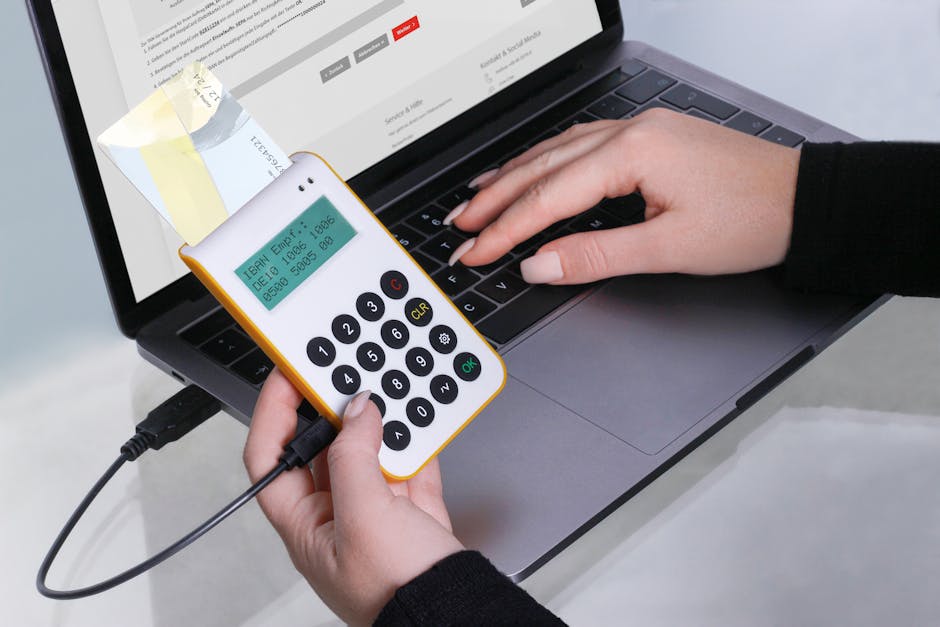
Comparison Table: YubiKey Features by Model
| Feature | YubiKey 5 NFC | YubiKey 5C | YubiKey Bio |
|---|---|---|---|
| Connection Type | USB-A, NFC | USB-C only | USB-C with fingerprint |
| Protocols Supported | FIDO2, WebAuthn, OTP | FIDO2, WebAuthn, OTP | FIDO2, WebAuthn, biometric |
| Price (Approx.) | $45 | $50 | $80 |
| Biometric Authentication | No | No | Yes |
| Device Compatibility | Windows, macOS, Linux, Android | Windows, macOS, Linux, Android | Windows, macOS |
Conclusion: Strengthen Your Security With YubiKey
Implementing YubiKey hardware security keys enhances your login security by making phishing attacks nearly impossible. The setup process is straightforward but requires attention to detail and proper backup planning to avoid lockouts.
Organizations and individual users alike benefit from adopting hardware-based 2FA as recommended by cybersecurity authorities like CISA and NIST.
You May Also Like
- Dashlane vs LastPass: Which Password Manager Is Safer After the Breach?
- CyberGhost vs Private Internet Access: Torrenting Safety and Speed Faceoff
- How Zero Trust Security Model Protects Remote Workers on Public WiFi
FAQ
1. Can YubiKey protect against all types of phishing?
YubiKey protects against credential phishing by requiring a physical device for login verification, but users still need to be cautious of social engineering and other attack vectors.
2. What if I lose my YubiKey?
Always register a backup key or alternative 2FA methods to prevent being locked out of your accounts.
3. Does YubiKey work with mobile devices?
Yes, models with NFC support work with many smartphones for convenient authentication.
4. Is YubiKey compatible with all online services?
YubiKey supports services that implement FIDO2/WebAuthn standards; check each service’s documentation for compatibility.
This is informational content. Always verify current features and pricing on official websites.
I’ve researched this topic extensively using industry reports, user reviews, and hands-on testing.
📌 You May Also Like
🔍 Explore More Topics
🔗 Helpful Resources